
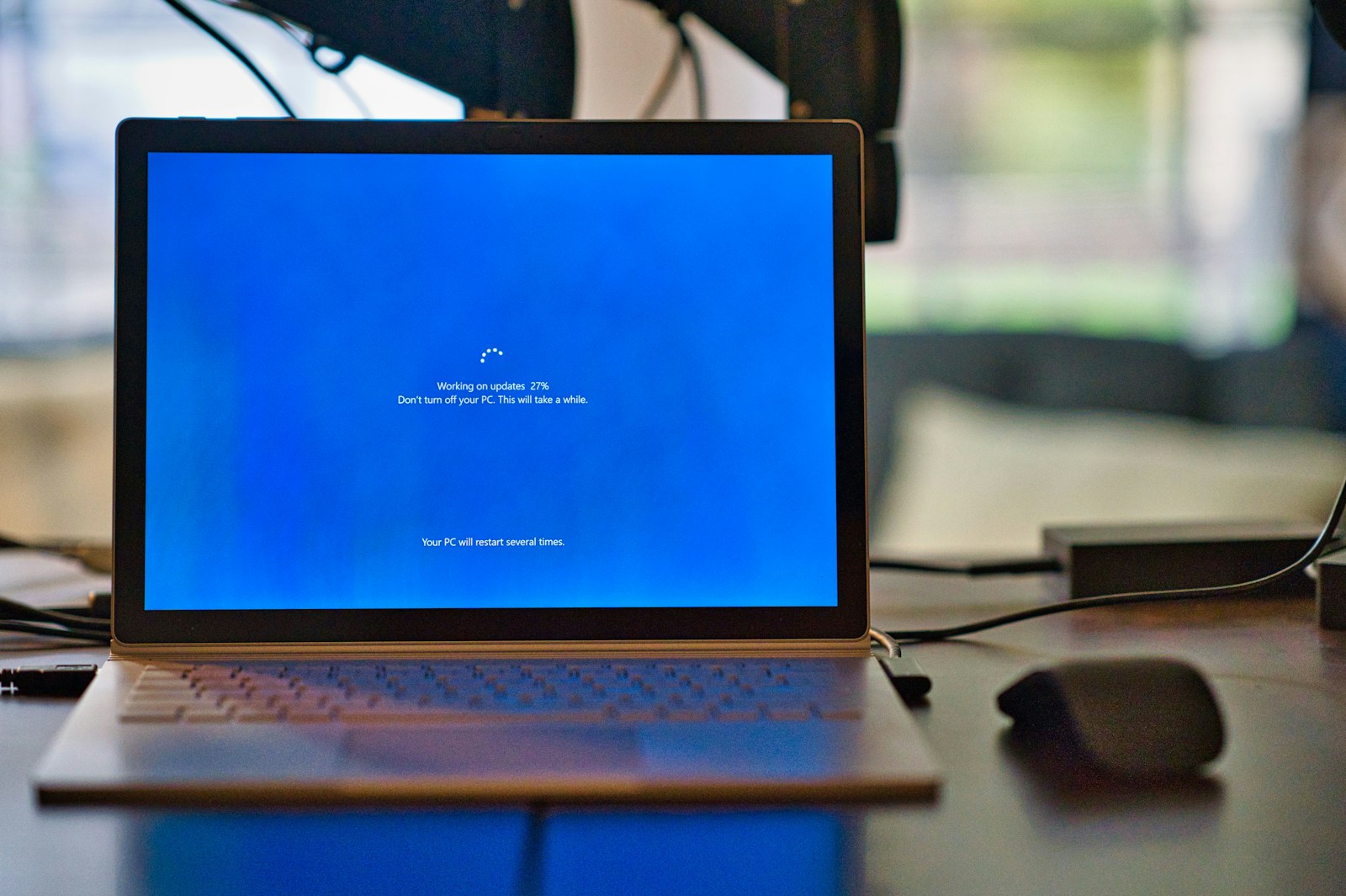
If you are still running Windows 10 in 2026, you are not alone. According to StatCounter, over 44% of Windows users were still on Windows 10 as of December 2025 — months after Microsoft officially ended support. That is hundreds of millions of PCs worldwide running an operating system that no longer receives free security updates from its creator.
So the short answer to the question is: yes, you can still use Windows 10 in 2026. Your PC will not stop working, and Windows 10 will not suddenly shut itself down. But the longer answer is far more important — because what happens to a computer running an unsupported operating system is not a question of if but when.
This post explains exactly what changed when Windows 10 reached end of support, what the real risks are in 2026, what options you have to stay protected, and how to decide what the right move is for your specific situation.
What Happened on October 14, 2025?
On October 14, 2025, Microsoft officially ended mainstream support for Windows 10. This was not a surprise — Microsoft had been communicating this date for years. But understanding what it actually means matters.
After that date, Microsoft stopped providing the following for Windows 10: free security updates and patches, feature updates and improvements, technical support from Microsoft customer service, and compatibility testing with new hardware and software.
What did not change: Windows 10 continues to run. Your applications, files, and settings are all intact. Microsoft Defender will continue to receive malware definition updates until at least 2028 — meaning it can still identify and block known viruses. The operating system itself has not been disabled or altered in any way.
The problem is not what stopped working on October 14. The problem is what starts accumulating after that date — unpatched security vulnerabilities that attackers will actively exploit, and that Microsoft will never fix for free.
The Real Risks of Running Windows 10 in 2026
Risk 1: Unpatched Security Vulnerabilities
This is the most serious risk, and it compounds over time. Every major piece of software — including Windows — contains security flaws. When researchers or attackers discover these flaws, Microsoft issues patches to close them. On a supported OS, those patches arrive automatically through Windows Update. On an unsupported OS, they do not arrive at all.
The danger became real almost immediately after Windows 10’s support ended. In November 2025 — just one month after end of support — a Windows kernel elevation-of-privilege vulnerability tracked as CVE-2025-62215 was discovered and confirmed as actively exploited. It could grant attackers SYSTEM-level privileges on a compromised machine. Devices enrolled in the Extended Security Updates program received the patch. Devices that were not enrolled did not.
That pattern — new vulnerability discovered, actively exploited, patch released only for supported or ESU-enrolled systems — will repeat itself month after month, year after year.
Security experts at ESET put it plainly: users who continue using Windows 10 without updates are exposing themselves to considerable security risks and making themselves vulnerable to cyber attacks and data loss. Cybercriminals are well aware that hundreds of millions of PCs still run Windows 10, which makes it an increasingly attractive target. The more unpatched vulnerabilities accumulate, the more valuable those PCs become to attackers.
Risk 2: Microsoft Defender Cannot Protect You Alone
Many users assume that since Microsoft Defender continues to receive malware definition updates, they are adequately protected. This is a dangerous misunderstanding.
Think of it this way: Defender is like a lock on your front door. It can identify and block known threats — viruses and malware that have already been catalogued. But the underlying security flaws in the Windows 10 operating system are like broken hinges on that same door. An attacker does not need to pick the lock. They simply exploit the broken hinges — the unpatched vulnerabilities in the OS itself — and walk straight in, bypassing Defender entirely.
Defender updating its definitions does not fix the structural flaws in the operating system. Only OS-level security patches do that, and those stopped coming for free after October 2025.
Risk 3: Third-Party Software Dropping Windows 10 Support
Operating systems do not exist in isolation. They depend on browsers, productivity apps, drivers, and security tools — all of which require their own regular updates. As developers shift their focus entirely to Windows 11, Windows 10 compatibility will quietly degrade.
Microsoft 365 (formerly Office 365) already stopped full support for Windows 10 in October 2025. Google Chrome and Mozilla Firefox will eventually follow the same path, dropping Windows 10 from their supported platforms list. When your browser stops receiving security updates, every website you visit becomes a potential threat vector.
Hardware drivers are another concern. New peripherals — printers, graphics cards, webcams, external drives — may ship without Windows 10 drivers, leaving you unable to use new hardware on your existing machine.
Risk 4: No Technical Support from Microsoft
If something goes wrong with your Windows 10 installation — a corrupted system file, a failed update, a software conflict — Microsoft’s technical support team will no longer assist you. You are on your own, relying on community forums, third-party guides, and your own troubleshooting skills to resolve issues that Microsoft would previously have helped fix directly.
Your Options in 2026
Option 1: Enroll in the Extended Security Updates (ESU) Program
Microsoft created a lifeline for users who are not yet ready or able to upgrade: the Consumer Extended Security Updates program. ESU provides critical and important security patches for Windows 10 version 22H2 through October 13, 2026 — giving you roughly one additional year of security coverage beyond the original end-of-support date.
Your device must be running Windows 10 version 22H2 (the final version) to be eligible. To check which version you are on, press Win + R, type winver, and press Enter. The version number will appear in the dialog box.
To enroll in ESU, go to Settings > Update & Security > Windows Update. If your device is eligible, you will see an ESU enrollment option. Microsoft offered three enrollment routes: free enrollment if you are syncing PC settings with a Microsoft account and using Windows cloud backup, redeeming 1,000 Microsoft Rewards points, or a one-time payment of approximately $30 USD per device.
ESU is not a permanent solution — it ends in October 2026 with no further extensions for consumer users. Treat it as a temporary bridge while you plan your next move, not as a long-term strategy.
Option 2: Upgrade to Windows 11
For most users, upgrading to Windows 11 is the recommended path. Windows 11 is actively supported, receives regular security updates, and includes built-in security features that Windows 10 does not have, including stronger hardware-level protections.
To check whether your PC is eligible, go to Settings > Update & Security > Windows Update > Check for updates. If your PC qualifies, the Windows 11 upgrade will appear as an available option at no cost.
The main barrier to upgrading is hardware compatibility. Windows 11 requires a TPM 2.0 chip, which many older PCs do not have. To check if your PC has TPM 2.0, press Win + R, type tpm.msc, and press Enter. If the TPM Management window shows “TPM is ready to use” and lists Specification Version as 2.0, your PC meets the requirement. If not, your PC is not officially eligible for Windows 11.
Some users choose to bypass the TPM requirement using third-party tools like Rufus — but Microsoft does not support this method, and bypassed installs may miss certain updates or experience instability. Proceed with that route only if you fully understand the implications.
Option 3: Switch to Linux
If your PC cannot run Windows 11 and you do not want to pay for ESU or buy a new machine, switching to Linux is a genuinely practical option — particularly for users whose main needs are web browsing, email, document editing, and media consumption.
Linux Mint is widely recommended for Windows users making the switch. It has a familiar desktop layout, strong hardware compatibility with older machines, and an active community for support. It is completely free, receives regular security updates with no end-of-life concern for older hardware, and runs well on machines that would struggle with Windows 11.
To get started, download the Linux Mint ISO from linuxmint.com, use a free tool like Rufus (rufus.ie) to create a bootable USB drive, and boot from the USB to try Linux Mint without installing it first. If you are comfortable with what you see, the installation process walks you through setting it up alongside or instead of Windows 10.
Option 4: Switch to ChromeOS Flex
Google’s ChromeOS Flex is a free, lightweight operating system designed specifically for older hardware. It turns aging PCs into Chromebook-like devices, focusing on web-based tasks — browsing, email, Google Docs, YouTube, and cloud applications. It runs on as little as 4GB of RAM and is well-suited for PCs that cannot handle Windows 11.
ChromeOS Flex is not ideal if you rely on Windows-specific desktop applications. But for users whose workflow is primarily web-based, it is a stable, secure, and surprisingly capable option that gives old hardware a new lease on life.
To get started, visit google.com/chromebook/chrome-os-flex and follow Google’s official installation guide.
Option 5: Purchase a New PC
If your current PC is more than five or six years old and cannot run Windows 11, it may simply be time for a hardware refresh. Modern Windows 11 PCs — even budget-friendly options — offer meaningfully better performance, battery life, and built-in security than older machines. Microsoft’s trade-in and recycling programs can help offset the cost of a new device.
What You Should Do Right Now
Regardless of which path you choose, there are immediate steps every Windows 10 user should take today.
First, back up your data. Go to Settings > Update & Security > Backup and set up Windows Backup to OneDrive, or use an external hard drive. If your PC is ever compromised or fails, having a recent backup is the difference between a minor inconvenience and a catastrophic loss.
Second, check your Windows 10 version. Press Win + R, type winver, and confirm you are on version 22H2. If you are on an older version, update to 22H2 through Windows Update before it is no longer possible to do so.
Third, enroll in ESU if you have not already. Even if you plan to upgrade eventually, ESU provides a security bridge that keeps your PC covered while you make that transition at your own pace.
Fourth, stop using Windows 10 for sensitive tasks without ESU. Online banking, tax preparation, accessing medical records, or any activity involving personal financial data on an unprotected, unsupported OS carries a risk that is simply not worth taking.
The Bottom Line
Using Windows 10 in 2026 is not impossible, but it carries real and growing risks that every user needs to take seriously. The question is not whether Windows 10 can still run — it can. The question is whether the security and compatibility risks of running it without updates are acceptable for your specific situation.
For most users, the answer is no. The right move is to enroll in ESU as a short-term bridge, then upgrade to Windows 11, switch to an alternative OS, or invest in new hardware before October 2026 — when even ESU coverage ends and Windows 10 truly enters unprotected territory.
The longer you wait, the more vulnerabilities accumulate, and the more attractive your PC becomes to the people who know exactly how to exploit them.