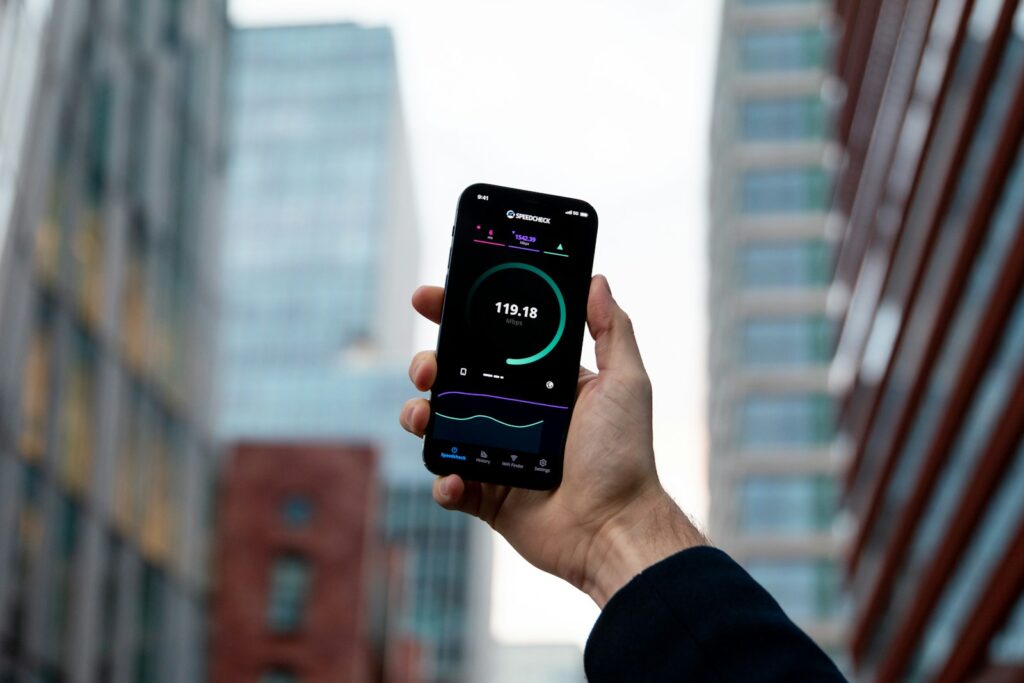
Have you ever noticed that your internet speed is fast during a speed test but slow when downloading files, watching videos, or using certain websites? Your Internet Service Provider (ISP) might be limiting some types of internet traffic. This practice is known as ISP throttling.
However, slow internet does not always mean your ISP is throttling your connection. Wi-Fi problems, network congestion, slow servers, and data limits can cause similar issues.
In this guide, you will learn how to check if your ISP is throttling your internet, compare speeds with and without a VPN, identify common warning signs, and understand what to do if you find a problem.
What Is ISP Throttling?
ISP throttling happens when an internet service provider intentionally reduces the speed of a connection or certain types of internet traffic.
For example, your ISP might provide your normal download speed when browsing websites but deliver slower speeds when using a particular service. Some providers may also reduce speeds after you use a certain amount of data, depending on your plan’s terms.
Throttling can affect different types of online activity, including video streaming, file downloads, online gaming, and peer-to-peer traffic.
ISP Throttling vs. Network Congestion
These two problems can look similar, but they are not the same.
- ISP throttling: Your provider intentionally limits a connection, service, or type of traffic under certain conditions.
- Network congestion: Too many users are sharing limited network capacity, causing speeds to drop.
- Wi-Fi problems: Weak signals, interference, or router issues reduce the speed reaching your device.
- Server limitations: The website or service you are using cannot deliver data quickly enough.
For example, if your connection becomes slow every evening, it could be congestion during busy hours. If only one type of traffic is consistently slow while other services work normally, selective throttling is one possibility worth investigating.
Signs Your ISP Might Be Throttling Your Internet
There are several warning signs that can help you decide whether further testing is necessary. None of these signs proves throttling on its own, but repeated patterns can provide useful clues.
Your Speed Test Results Are Good, but Downloads Are Slow
Suppose your internet plan offers 100 Mbps and a speed test reports close to that speed. However, downloading a file from a particular service is much slower.
This difference may indicate a problem with the service, its server, the route between networks, or the way traffic is handled by your ISP.
Run tests using different services before drawing a conclusion.
Streaming Videos Keep Buffering
You might notice that YouTube or another streaming platform frequently buffers, lowers video quality, or takes a long time to start playing.
If other websites load quickly at the same time, the streaming service’s performance deserves further investigation. However, streaming servers, video quality settings, and network congestion can also cause these symptoms.
Download Speeds Drop During Certain Hours
If your connection performs well in the morning but becomes slow every evening, record the results at different times.
A repeated slowdown during busy hours may indicate network congestion or a provider’s traffic-management policy. Testing at different times helps you identify the pattern, but it does not tell you the exact cause by itself.
Some Services Are Much Slower Than Others
Another possible sign is a large difference between services using the same connection.
For example, browsing and ordinary downloads might work normally while a particular streaming platform or file-sharing service performs poorly.
This is a reason to investigate the affected service, but differences in server capacity, routing, and content delivery can produce similar results.
How to Check if Your ISP Is Throttling Your Internet
The most useful approach is to compare repeated measurements under similar conditions. You do not need special equipment to start testing.
Test Your Normal Internet Speed
First, establish how your connection performs when you are not using the affected application or service.
Open one or more of these speed-testing websites:
Run the tests and record your download speed, upload speed, and latency. Cloudflare also reports measurements such as jitter and packet loss.
For more reliable results:
- Use a wired Ethernet connection if possible.
- Pause large downloads, cloud backups, and other bandwidth-heavy activities.
- Make sure other people are not using most of your available bandwidth.
- Run each test more than once.
- Compare the results with the speed included in your internet plan.
Cloudflare notes that its speed test can consume up to 200 MB of data, so keep that in mind if your connection has a data allowance.
A speed test measures performance between your device and a particular test server. It does not directly prove whether your ISP is throttling a specific service.
Compare Different Websites and Services
After checking your normal speed, test the application or service that seems unusually slow.
For example, if large downloads are slow, compare downloads from different websites. If streaming is the problem, compare more than one streaming platform.
Try to keep the conditions as similar as possible. Use the same computer, network connection, and testing period.
If every service is slow, investigate your router, local network, and overall connection first. If only one service is affected repeatedly, investigate that service’s server performance and network route before assuming throttling.
Test Your Internet at Different Times
Internet performance can change throughout the day. A connection that works well early in the morning may become slower when more people are online.
Run speed tests during different periods, such as:
- Morning
- Afternoon
- Evening peak hours
- Late at night
Record the date, time, test server, and results. Repeat the comparison over several days rather than relying on a single test.
If your speeds consistently fall during busy hours, congestion or traffic management could be involved. If only one service slows down while other services remain fast, you have a more specific issue to investigate.
Compare Your Speed With and Without a VPN
A VPN test can provide another useful clue. A VPN encrypts traffic between your device and the VPN server, changing the route your traffic takes to reach its destination.
This may change how your connection performs if the original route is congested or if traffic is being treated differently.
To compare the results:
- Run a speed test with your VPN turned off.
- Record the download speed, upload speed, and latency.
- Connect to a reputable VPN server.
- Run the same speed test again using the same testing service.
- Repeat the comparison several times.
Next, test the specific service that has been performing poorly, both with and without the VPN.
How should you interpret the results?
If the affected service consistently becomes faster through the VPN, it suggests that the route or the way traffic is handled may be part of the problem. However, it does not prove that your ISP is throttling you. A VPN can bypass a congested route, use a different server path, or change how traffic is classified.
A VPN can also make your internet slower because of encryption overhead, server distance, or VPN server congestion. Therefore, use it as a diagnostic tool rather than a guaranteed solution.
Check Your ISP’s Data Limit and Fair-Use Policy
Some internet plans include data allowances, fair-use policies, or conditions that allow speeds to be reduced after a specified amount of usage.
Check your ISP’s official website, plan details, or customer agreement.
Look for information about:
- Monthly data allowances
- Fair-use policies
- Reduced speeds after a data threshold
- Hotspot or tethering restrictions
- Traffic-management policies
- Different speeds for different packages
If your speed dropped after heavy usage, a data-related restriction could explain the problem. Ask your ISP whether your account has reached a limit or whether any speed restriction is active.
An advertised unlimited plan does not automatically mean that every type of traffic will always receive unrestricted speed. Read the terms that apply to your specific package.
How to Understand Your Test Results
Once you have collected a few measurements, look for repeated patterns instead of focusing on one number.
| Test result | Possible explanation |
|---|---|
| All websites and downloads are slow | Wi-Fi problems, congestion, router issues, or an ISP connection problem |
| General speed tests are fast, but one service is slow | Service-side problems, routing, congestion, or possible traffic-specific throttling |
| Speeds improve late at night | Peak-hour congestion or time-based traffic management |
| Speeds improve when using a VPN | Different routing or traffic handling; not proof of throttling |
| Speed drops after heavy data usage | A data threshold or fair-use policy may apply |
| Ethernet is fast but Wi-Fi is slow | A local wireless problem is more likely |
These results are clues, not definitive diagnoses. More testing may be necessary to identify the cause.
What to Do if Your ISP Is Throttling Your Internet
If your tests show a consistent pattern, take a few practical steps before changing your internet plan or provider.
Collect Evidence Before Contacting Your ISP
Save your test results, including screenshots and timestamps. Record the affected service, your connection type, and whether the problem occurs at particular times.
If possible, include comparisons from more than one speed-testing website and the results of your VPN tests.
This information can help customer support investigate the problem instead of giving you only general troubleshooting advice.
Contact Your ISP’s Customer Support
Explain the problem clearly and ask whether your account has any active speed restrictions, data limits, or traffic-management rules.
You can ask:
- Is my connection being limited because of a data threshold?
- Does my plan have any traffic-management restrictions?
- Is there a known congestion or routing problem?
- Can you check the performance of my connection?
- Are there any restrictions affecting the service I am trying to use?
Ask for a technical investigation if the problem continues. Keep a record of the support ticket and the response you receive.
Check Your Router and Local Network
Before concluding that your ISP is responsible, make sure your local network is working correctly.
Update your router’s firmware if an update is available, check the Ethernet cable, and test with a wired connection. Pause unnecessary downloads and disconnect devices that are using significant bandwidth.
If the connection is slow only on one computer, check that device separately. A slow computer, background application, or network adapter problem can affect performance without any throttling by your ISP.
Consider Another Internet Provider
If your provider cannot resolve a persistent problem, compare available alternatives in your area.
Check the advertised speed, actual performance reports, data policies, customer support, and contract conditions. Do not choose a provider based only on its maximum advertised speed.
If the issue is specific to one service, changing providers may help in some cases, but first try to establish whether the problem comes from the provider, the service, or the route between them.
Can a VPN Stop ISP Throttling?
A VPN may help in some situations, but it is not a universal solution.
Because a VPN encrypts your traffic and routes it through a VPN server, it can make some forms of traffic-specific identification more difficult. It may also improve performance by changing the route your connection takes.
However, a VPN cannot fix every cause of slow internet. It cannot increase your plan’s maximum speed, eliminate all network congestion, or guarantee better performance from a slow destination server.
If your ISP limits your total connection speed or reduces speeds under a data policy, a VPN may not help. In addition, a VPN provider can introduce its own speed limitations.
Use a reputable service and compare the results before paying for a subscription solely to address suspected throttling.
Frequently Asked Questions
How do I know if my ISP is throttling my internet?
Look for repeated differences between general internet performance and a particular service. Compare speeds at different times, test using multiple services, and try a VPN as an additional diagnostic. These tests can suggest a problem, but they cannot prove throttling on their own.
Does a faster VPN prove that my ISP is throttling me?
No. A faster VPN connection may mean that the VPN uses a better route or avoids congestion on the original route. It can also change how traffic is handled. More evidence is needed to identify the cause.
Why is my internet fast on a speed test but slow when downloading files?
A speed test measures performance to a specific server. The file server, network route, download limit, or traffic-management policy may behave differently. Test several download sources and compare the results under similar conditions.
Can my ISP throttle YouTube or Netflix?
An ISP can apply traffic-management policies depending on its network and service terms, but slow streaming does not automatically mean throttling. Server performance, video quality, congestion, and routing can also affect playback.
Netflix publishes an ISP Speed Index that compares prime-time Netflix streaming performance across participating providers and regions. It measures performance for Netflix, not overall internet speed or proof of throttling.
Is ISP throttling illegal?
The rules depend on the country, the type of internet service, and the provider’s contractual and regulatory obligations. Check the terms of your plan and your country’s applicable telecom regulations if you believe your provider is treating traffic improperly.
Can restarting my router fix ISP throttling?
Restarting a router can resolve some connection problems, but it will not necessarily remove a restriction imposed by your ISP. If the problem continues after basic troubleshooting, collect test results and contact your provider.
Final Thoughts
ISP throttling can make certain online activities slower even when your internet connection appears to be working normally. However, slow downloads, buffering, and poor performance during peak hours can also result from congestion, routing problems, Wi-Fi interference, or limitations at the destination server.
The best way to investigate is to compare repeated speed tests, check different services, test at different times, review your plan’s data policies, and use a VPN comparison as an additional clue.
Do not assume your ISP is throttling your connection based on one slow test. Collect consistent evidence, rule out local network problems, and contact your provider if the issue continues.