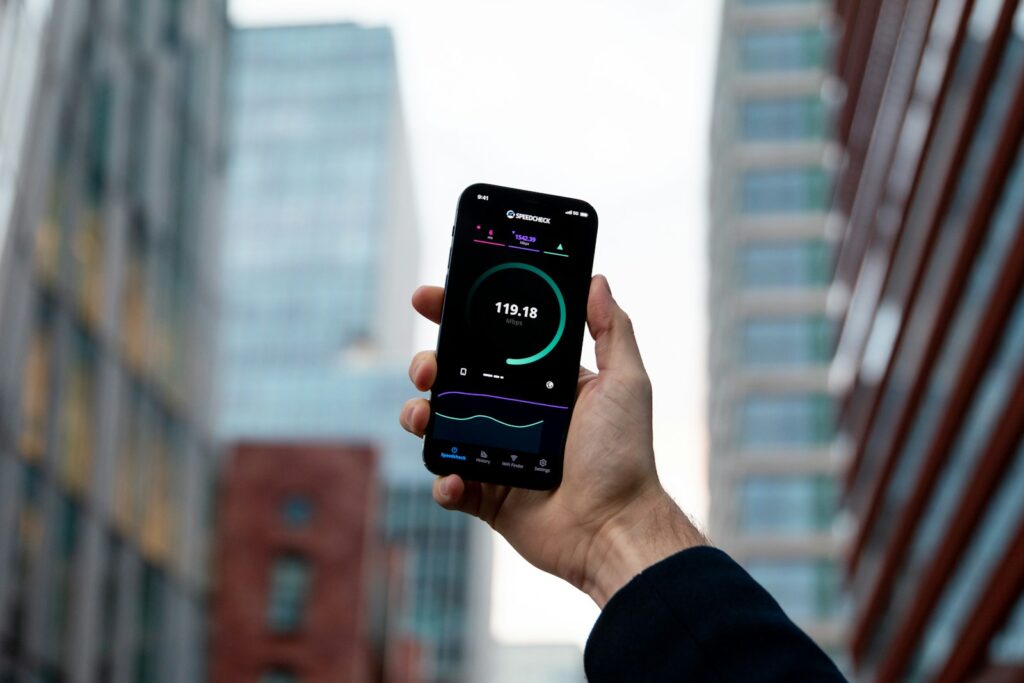
Your internet speed test shows 100 Mbps, 200 Mbps, or even higher, but downloading a game, software update, or large file takes forever. Websites open quickly, YouTube videos play without buffering, and everything seems normal until you start downloading something.
This situation is more common than you might think. A fast internet connection does not always guarantee fast file downloads. Your actual download speed depends on several factors, including the download server, Wi-Fi connection, background applications, browser settings, and network congestion.
In this guide, you will learn why your internet is fast but downloads are slow, how to identify the real cause, and what you can do to improve download speeds on Windows 10, Windows 11, and other devices.
Why Is My Internet Fast but Downloads Are Slow?
Your internet can perform well during a speed test while downloading actual files much more slowly because the two activities do not measure exactly the same thing.
An internet speed test generally connects your device to a selected testing server and measures how quickly data can be transferred under those conditions. Many speed tests use multiple connections to measure the available bandwidth.
A normal file download may depend on one server, fewer connections, or a specific route through the internet. If that server is overloaded or limits how much bandwidth each user can receive, your download speed may remain low even when your connection is capable of much higher speeds.
For example, suppose you have a 100 Mbps internet connection.
Your speed test shows:
- Download speed: 95 Mbps
- Upload speed: 50 Mbps
- Ping: 8 ms
However, when downloading a large file, your browser displays only 2 MB/s.
This does not automatically mean your internet provider is delivering less bandwidth than promised. The file server, download application, network conditions, or other limitations may be responsible.
To understand what your connection can actually deliver, you can follow our guide on how to test your real internet download speed.
Internet Speed vs. Download Speed: What’s the Difference?
Before troubleshooting, you should understand the difference between Mbps and MB/s. Confusing these two measurements is one of the most common reasons people believe their downloads are slower than expected.
Internet Speed Is Measured in Mbps
Internet service providers usually advertise connection speeds in megabits per second (Mbps).
For example:
- 20 Mbps internet connection
- 50 Mbps internet connection
- 100 Mbps internet connection
- 200 Mbps internet connection
- 500 Mbps internet connection
Mbps measures how many megabits of data can be transferred each second.
File Download Speed Is Usually Measured in MB/s
Browsers, download managers, and game launchers may display download speeds in megabytes per second (MB/s).
One byte contains eight bits.
Therefore:
Download speed in MB/s = Internet speed in Mbps ÷ 8
Here is a simple comparison:
| Internet Speed | Theoretical Maximum Download Speed |
|---|---|
| 10 Mbps | 1.25 MB/s |
| 20 Mbps | 2.5 MB/s |
| 50 Mbps | 6.25 MB/s |
| 100 Mbps | 12.5 MB/s |
| 200 Mbps | 25 MB/s |
| 500 Mbps | 62.5 MB/s |
| 1 Gbps | 125 MB/s |
These values represent theoretical conversions. Actual download speeds are usually somewhat lower because of protocol overhead, server limitations, and network conditions.
For example, if your internet package provides 100 Mbps and your download manager shows around 11 MB/s, your connection may already be performing reasonably well.
However, if the same connection consistently downloads files at only 500 KB/s or 1 MB/s from several reliable servers, further investigation is worthwhile.
10 Common Reasons Your Downloads Are Slow
Several factors can reduce file download speeds without noticeably affecting ordinary web browsing.
Understanding these causes will help you avoid changing settings that are not related to the actual problem.
1. The Download Server Is Slow or Overloaded
One of the most common reasons for slow downloads is the server hosting the file.
When you download software, videos, games, or documents, the data comes from a remote server. That server must have enough available bandwidth and processing capacity to deliver the file.
If thousands of users are downloading from the same server, its performance may decrease.
Some websites also intentionally limit download speeds for free users.
For example:
- Your internet connection supports 100 Mbps.
- The download server limits transfers to 10 Mbps.
- Your actual download speed stays around 1.25 MB/s.
Your internet connection may be working perfectly, but the remote server cannot or will not deliver the file faster.
How to check: Download another large file from a different trusted website. If the second file downloads much faster, the original server is likely contributing to the slowdown.
2. Your Wi-Fi Connection Is Weak or Unstable
Wi-Fi performance can change depending on your distance from the router, nearby electronic devices, walls, and interference from other wireless networks.
Even when your internet package is fast, a weak wireless connection can reduce the speed available to your device.
Common Wi-Fi problems include:
- Being too far from the router
- Thick walls between your device and the router
- Interference from neighboring networks
- Using a congested 2.4 GHz Wi-Fi band
- An outdated wireless adapter
- Multiple devices competing for wireless airtime
A speed test performed near the router may show excellent results, while downloading files from another room may be considerably slower.
If possible, connect your computer to the router using an Ethernet cable and compare the results.
If downloads become significantly faster through Ethernet, your wireless connection may be the main problem.
3. Background Applications Are Using Your Bandwidth
Your computer may be downloading or uploading data without making it obvious.
Windows updates, cloud storage applications, game launchers, and other background processes can consume substantial bandwidth.
Common examples include:
- Windows Update
- OneDrive or Google Drive synchronization
- Steam or Epic Games updates
- Torrent applications
- Automatic software updates
- Other devices streaming or downloading content
For example, if your household has a 50 Mbps connection and another device is consuming 35 Mbps, much less bandwidth may be available for your download.
However, the exact impact depends on how your router and applications manage network traffic.
How to check on Windows:
- Press Ctrl + Shift + Esc to open Task Manager.
- Select the Processes tab.
- Click the Network column to sort applications by current network usage.
- Identify applications using significant bandwidth.
- Pause unnecessary downloads or synchronization tasks.
Remember that Task Manager generally displays network utilization in bits per second rather than the MB/s shown by some download managers.
4. Your Browser Is Causing Download Problems
Sometimes, slow downloads affect only one browser.
This may happen because of browser extensions, outdated software, memory pressure, or problems communicating with a particular website.
For example, a file might download slowly in Google Chrome but perform normally in Microsoft Edge or Firefox.
Possible causes include:
- Problematic browser extensions
- An outdated browser version
- Excessive memory or CPU usage
- Proxy or VPN configurations
- Website-specific compatibility problems
Google’s official Chrome troubleshooting guide identifies extensions, device software, network problems, and website issues as possible causes of connection and loading errors.
Although those errors are not identical to slow download speeds, checking the same browser components can help isolate the problem.
Try downloading the same file using another browser.
If the speed improves significantly, investigate the original browser before changing your router or internet package.
5. Your ISP Has Network Congestion or Routing Problems
Your internet service provider (ISP) connects your home network to the wider internet.
Even if your local connection is functioning correctly, congestion or routing problems beyond your home network can affect transfers from particular destinations.
For example, your connection may perform well when communicating with a nearby speed-test server but struggle to download files hosted in another country.
Possible explanations include:
- Network congestion during peak hours
- Congested connections between networks
- Inefficient routing to a particular destination
- Temporary ISP infrastructure problems
- Traffic-management policies
These issues may become more noticeable during busy evening hours.
However, a single slow download is not enough to prove that your ISP is responsible.
You should compare multiple downloads, servers, and testing times before contacting your provider.
6. Your Device Has Limited Processing or Storage Performance
Downloading a file involves more than receiving data from the internet.
Your device may also need to write the file to storage, verify its integrity, decompress downloaded content, or perform security checks.
If your computer has limited resources, some applications may display slower overall download or installation progress.
Possible hardware limitations include:
- A slow or heavily used hard drive
- Very little available storage space
- High CPU usage
- Insufficient memory
- Background disk-intensive processes
This is particularly noticeable with game launchers that download compressed files and install them while the download is running.
For example, Steam may temporarily slow or pause network activity while unpacking game data.
How to check: Open Task Manager and monitor CPU, Memory, Disk, and Network activity while downloading.
If disk usage remains close to 100% while network activity drops, storage or file processing may be contributing to the slowdown.
7. Your Download Application Has a Speed Limit
Some applications allow users to set maximum download speeds.
These limits can be useful when you want to reserve bandwidth for gaming, video calls, or other online activities.
However, an accidentally enabled speed limit may prevent an application from using your available connection capacity.
Applications that may include bandwidth controls include:
- Steam
- Epic Games Launcher
- Torrent clients
- Download managers
- Cloud synchronization applications
For example, if a download manager is limited to 2 MB/s, upgrading your internet package will not make that application’s downloads exceed the configured limit.
Open the application’s settings and look for options such as Download Limit, Bandwidth Limit, or Speed Limit.
If a limit is enabled, adjust it according to your needs and test again.
8. Your VPN or Proxy Is Slowing Downloads
A VPN routes your internet traffic through another server.
Depending on the VPN provider, server location, encryption overhead, and network congestion, this additional route can reduce download performance.
For example, a connection that normally downloads at 10 MB/s might become slower when connected to a distant or overloaded VPN server.
However, VPNs do not always reduce speeds significantly, and their effect varies.
To investigate:
- Record your download speed while connected to the VPN.
- Disconnect the VPN temporarily if doing so is appropriate.
- Download the same file again under similar conditions.
- Compare the results.
If performance improves, try a closer VPN server or review your provider’s connection settings.
Avoid disconnecting a VPN that your workplace requires for security or access to private resources.
9. Antivirus Scanning or Security Software Is Affecting Downloads
Security applications may inspect downloaded files to identify malicious software.
This protection is important, but certain scanning processes can increase the time required to save or verify downloaded files.
The impact is usually more noticeable when downloading archives, installers, or files requiring additional inspection.
Security software can also interfere with connections if its configuration is incorrect.
However, antivirus scanning should not automatically be blamed whenever downloads are slow.
Check whether the application reports unusually high CPU or disk usage during downloads.
Do not disable antivirus protection simply to make downloads faster. Instead, keep the software updated and investigate any unusual resource usage or configuration problems.
10. Router Problems or Network Congestion
Your router manages traffic between your devices and the internet.
An overloaded, outdated, or malfunctioning router can affect download performance.
Problems may occur because of:
- Outdated router firmware
- Too many active devices
- Wireless interference
- Incorrect Quality of Service (QoS) settings
- Overheating or hardware limitations
- Limited Ethernet port speeds
For example, a router with only 100 Mbps Ethernet ports cannot deliver gigabit speeds through those ports, even if your internet subscription is faster.
QoS settings can also prioritize certain devices or applications over others.
If your router is configured to prioritize video calls or gaming traffic, file downloads may receive less bandwidth while those activities are running.
Restarting the router and checking its configuration can help determine whether it is contributing to the problem.
How to Fix Slow Download Speeds Step by Step
Now that you understand the common causes, follow these troubleshooting steps in order.
Start with simple checks before changing advanced network settings.
Step 1: Confirm Your Actual Internet Speed
First, determine whether your internet connection is delivering reasonable speeds.
Run a test using a trusted speed-testing service and record:
- Download speed
- Upload speed
- Latency or ping
- Time of the test
For more accurate results, connect your PC using Ethernet, close unnecessary downloads, and repeat the test several times.
Compare the results with the speed advertised in your internet package.
If you are unsure how to interpret the numbers, our real internet download speed testing guide explains how to compare speed-test results with actual file transfers.
Step 2: Download a File From Another Trusted Server
Before modifying Windows settings, check whether the issue affects all downloads.
Try downloading large files from two different reputable sources.
Compare the transfer speeds after they stabilize.
For example:
| Test | Download Speed | Possible Interpretation |
|---|---|---|
| Website A | 1 MB/s | Original server may be slow |
| Website B | 10 MB/s | Connection can deliver higher speeds |
| Website C | 11 MB/s | Similar result confirms better performance elsewhere |
These values are illustrative.
If only one website is slow, investigate that website or its download service.
If every download is slow, continue troubleshooting your device and network.
Step 3: Restart Your Router and Computer
Restarting your devices can resolve temporary network or software problems.
To restart your router:
- Turn off the router using its power button, if available.
- Disconnect its power supply.
- Wait approximately 30 seconds.
- Reconnect the power.
- Allow the connection to become stable.
- Test your download speed again.
If you use a separate modem or optical network terminal, follow the manufacturer’s or ISP’s restart guidance.
Restart your computer as well to close temporary background processes.
A restart will not fix server-side download limits or persistent ISP routing problems, but it is a useful early troubleshooting step.
Step 4: Use Ethernet or Improve Your Wi-Fi Connection
If you normally use Wi-Fi, test the same download through an Ethernet connection.
This helps determine whether wireless conditions are limiting performance.
If Ethernet provides better speeds, consider:
- Moving closer to the router
- Using the 5 GHz Wi-Fi band when practical
- Positioning the router away from large obstacles
- Reducing interference from nearby devices
- Updating your wireless adapter driver
- Upgrading outdated networking equipment when necessary
The 5 GHz band can offer higher speeds in suitable conditions, but 2.4 GHz generally reaches farther and may perform better through walls.
Choose the band that provides the most stable performance at your location.
Step 5: Stop Unnecessary Background Network Activity
Open Task Manager and check which applications are using your network.
Pause large transfers that are not immediately necessary.
You should also check other devices connected to the same router.
For example, another computer may be downloading game updates while a television streams high-resolution video.
Temporarily reducing these activities can help establish whether bandwidth sharing is causing the slowdown.
Step 6: Check Windows Delivery Optimization Settings
Windows uses Delivery Optimization to manage downloads for Windows Updates, Microsoft Store apps, and certain other Microsoft content.
You can review the related settings if Microsoft updates or supported app downloads are performing poorly.
On Windows 11:
- Open Settings.
- Select Windows Update.
- Click Advanced options.
- Open Delivery Optimization.
- Review the available bandwidth and download-related options.
Microsoft explains that Delivery Optimization can use bandwidth limits for automatic update downloads. However, these limits do not apply to every type of download, including manually initiated Windows Update or Microsoft Store downloads.
You can read the details in Microsoft’s official Delivery Optimization documentation.
If you find a restrictive setting affecting automatic updates, adjust it appropriately.
Important: These settings generally do not control ordinary downloads in Chrome, Steam, or other unrelated applications.
Step 7: Check Browser and Download Manager Settings
If downloads are slow in a particular browser, update it and test another browser.
You can also temporarily disable unnecessary extensions to see whether one is interfering with downloads.
For Chrome:
- Open Google Chrome.
- Click the three-dot menu.
- Select Extensions, then Manage Extensions.
- Temporarily turn off extensions you do not need.
- Restart Chrome.
- Test the download again.
If you use a download manager, review its bandwidth restrictions and connection settings.
Avoid increasing the number of simultaneous download connections excessively. Some websites restrict multiple connections, and aggressive settings may not improve performance.
Step 8: Update Your Network Adapter Driver
An outdated or malfunctioning network driver can sometimes cause unstable speeds or connectivity problems.
To check your network adapter on Windows:
- Right-click the Start button.
- Open Device Manager.
- Expand Network adapters.
- Identify your Ethernet or Wi-Fi adapter.
- Right-click it and select Update driver.
- Follow the instructions.
Windows may already have the latest available driver.
If the issue began after a driver update, reviewing the manufacturer’s support website or considering a driver rollback may be more appropriate than installing another update.
Download drivers only from Windows Update or your device manufacturer’s official website.
Step 9: Check for Connection Drops or Packet Loss
Sometimes, a download slows down because the connection is unstable rather than because bandwidth is consistently limited.
An unstable connection may cause data retransmissions, interruptions, or fluctuating transfer speeds.
Common symptoms include:
- Downloads repeatedly dropping to zero
- Sudden changes in download speed
- Websites occasionally failing to load
- Online games disconnecting
- Wi-Fi temporarily losing connectivity
If you are experiencing these problems on Windows 11, read our guide on why the internet disconnects randomly on Windows 11.
It covers common connection issues that may also affect long-running downloads.
Step 10: Contact Your Internet Service Provider
If the previous steps do not resolve the problem, your ISP may need to investigate.
Before contacting support, gather useful evidence.
Record:
- Your subscribed internet speed
- Results from multiple speed tests
- Download speeds from different servers
- Whether Ethernet performs better than Wi-Fi
- Whether the problem occurs throughout the day
- Whether other devices experience the same issue
You can also explain whether downloads from particular international destinations are consistently slower.
This information can help your provider investigate congestion, routing problems, or connection faults.
Why Are Downloads Slow in Chrome, Steam, and Other Apps?
Different applications download and process files differently.
Therefore, slow speeds in one application do not necessarily indicate a problem with your entire internet connection.
Why Are Chrome Downloads Slow When Internet Speed Is Fast?
If Chrome downloads files slowly while other applications perform normally, the issue may involve the browser or the website hosting the file.
Start by:
- Testing the same file in another browser
- Updating Chrome
- Checking installed extensions
- Pausing unnecessary background applications
- Trying another trusted download server
If the issue affects only one website, its server or transfer limits may be the main cause.
Avoid using unknown browser extensions that promise to multiply download speeds. They cannot bypass the bandwidth limits of your internet connection or the remote server.
Why Is Steam Downloading Slowly With Fast Internet?
Steam downloads can behave differently from normal browser downloads because game files often require installation, decompression, or disk processing.
Possible causes include:
- Steam download bandwidth limits
- A congested download region
- Slow storage performance
- Game file decompression
- Background network activity
Open Steam settings and inspect the Downloads section.
Check whether a download limit is enabled and review the selected download region.
If download speed drops while disk activity increases, Steam may be processing downloaded data rather than continuously receiving new data.
Why Are Epic Games Downloads Slow?
Epic Games Launcher may experience slow downloads because of server congestion, background activity, application settings, or disk performance.
If the issue occurs only with Epic Games:
- Check the launcher’s available download settings.
- Pause other downloads.
- Restart the launcher.
- Monitor disk and network usage.
- Test another application to compare performance.
Avoid applying unverified configuration tweaks without understanding what they change.
Why Are Torrent Downloads Slow Even With Fast Internet?
Torrent transfers depend on the availability and performance of other users sharing the file.
Unlike a conventional download from one server, a torrent may receive data from multiple peers.
Factors that influence torrent speed include:
- Number of available seeders
- Seeder upload capacity
- Peer connectivity
- Torrent client bandwidth limits
- Network congestion
- Availability of the requested file pieces
For example, a torrent with very few active seeders may download slowly even on a fast connection.
If you use a private torrent tracker, you should also understand its sharing and ratio requirements.
Our TorrentBD.net guide explains how private tracker systems and ratio rules work.
Always download content you are authorized to access.
How to Check Whether Your ISP Is Causing Slow Downloads
It can be difficult to distinguish an ISP-related problem from a slow download server.
The most useful approach is to compare consistent test results.
Test Your Connection at Different Times
Run your speed test and actual file download tests during:
- Morning
- Afternoon
- Evening
- Late night
If performance becomes consistently worse during busy evening periods, network congestion may be a factor.
However, the pattern alone does not prove where the congestion occurs.
Compare Local and International Downloads
Try downloading files from reputable servers in different locations.
If local servers consistently deliver high speeds but distant servers are slow, international routing, congestion, or server capacity may be contributing.
Distance can affect latency, but it does not automatically explain every slow download.
Test With a Wired Connection
A wired test removes many common Wi-Fi variables.
If multiple trusted download sources remain slow through Ethernet, the problem is less likely to be caused by wireless interference.
However, you should still check the computer, router, and server conditions before concluding that the ISP is responsible.
Compare Multiple Devices
Test the same network using another computer or device.
If one device downloads slowly while another performs normally under similar conditions, investigate the slower device.
If several devices show the same problem, focus on the router, network connection, or upstream service.
What Is a Good Download Speed?
A good download speed depends on your internet package, the type of files you download, and the server delivering those files.
There is no single download-speed number that is ideal for everyone.
For example, a 20 Mbps connection may be sufficient for ordinary browsing and smaller downloads, while a 200 Mbps or faster connection can reduce the time needed to download large games and software packages when the source server can keep up.
Here is an approximate comparison for downloading a 10 GB file:
| Internet Speed | Ideal Download Time for 10 GB |
|---|---|
| 20 Mbps | 1 hour 7 minutes |
| 50 Mbps | 27 minutes |
| 100 Mbps | 13 minutes 20 seconds |
| 200 Mbps | 6 minutes 40 seconds |
| 500 Mbps | 2 minutes 40 seconds |
These estimates assume 10 GB equals 80 gigabits and the connection maintains the stated rate without overhead, interruptions, or server limitations.
Actual downloads may take longer.
A useful way to evaluate your download speed is to compare the observed transfer rate with the maximum your connection could theoretically support.
For example, on a 100 Mbps connection:
- Around 10–12 MB/s may indicate good real-world performance.
- Around 5 MB/s suggests that something may be limiting the transfer.
- Around 1 MB/s across multiple reliable servers warrants further troubleshooting.
These are practical illustrations, not universal performance guarantees.
Frequently Asked Questions (FAQs)
Why Is My Download Speed Only 1 MB/s When My Internet Is 100 Mbps?
A 100 Mbps connection has a theoretical maximum transfer rate of 12.5 MB/s. If actual downloads remain at 1 MB/s, possible causes include server restrictions, weak Wi-Fi, application speed limits, background activity, or network congestion.
Test downloads from multiple reliable sources to identify the limitation.
Why Does Speedtest Show 100 Mbps but Downloads Are Slow?
Speed tests often use optimized servers and multiple connections to measure available bandwidth.
A normal file download may rely on a slower server or fewer connections.
Therefore, a high speed-test result does not guarantee that every website can deliver files at the same speed.
Does Changing DNS Improve Download Speed?
Changing DNS servers may improve domain-name lookup performance in some circumstances.
However, DNS generally does not control the transfer speed once a download connection is established.
A different DNS resolver may occasionally direct a service to a different content delivery server, but changing DNS is not a reliable solution for slow file downloads.
Can a VPN Make Downloads Faster?
Sometimes, but not consistently.
A VPN may improve performance if it changes an inefficient network route or avoids certain traffic-management conditions.
However, VPNs can also reduce download speeds because of server congestion, additional routing, and encryption overhead.
The best approach is to compare results with and without the VPN under similar conditions.
Why Are My Downloads Slow at Night?
Download speeds may decrease during busy evening hours when more people are using the same networks and services.
Congestion may occur within your ISP’s network, between networks, or at the download server.
Repeat tests at different times to identify a consistent pattern.
Will Ethernet Increase My Download Speed?
Ethernet can improve download performance if your Wi-Fi connection is the limiting factor.
A wired connection often provides more consistent performance by avoiding wireless interference.
However, Ethernet cannot make a slow download server deliver data faster or exceed the speed supported by your internet plan.
Why Is My Internet Fast but Downloads Are Slow on Windows 11?
Possible causes include background updates, weak Wi-Fi, application bandwidth limits, network driver problems, and slow download servers.
Start by comparing download speeds from different sources and checking network activity in Task Manager.
If the problem affects Microsoft update downloads, review the relevant Delivery Optimization settings.
Can a Download Manager Increase Download Speed?
A download manager may improve performance when a server supports multiple connections and the original application does not use the available bandwidth efficiently.
However, it cannot guarantee faster downloads.
It cannot bypass the limits of your internet package or a server that restricts total transfer speed.
Final Thoughts
If your internet is fast but downloads are slow, the problem does not necessarily come from your internet service provider.
A speed test measures how your connection performs under particular conditions, while an actual file download depends on the source server, your device, application settings, and network performance.
Start by checking the difference between Mbps and MB/s. Then compare downloads from multiple trusted sources, test your connection through Ethernet, pause unnecessary background activity, and review application bandwidth limits.
If downloads remain slow across different devices and servers, collect consistent test results and contact your ISP for further investigation.
The key is to identify what is limiting the download before trying to increase the speed. Once you know whether the problem involves the server, Wi-Fi, computer, application, or ISP, finding the right solution becomes much easier.