
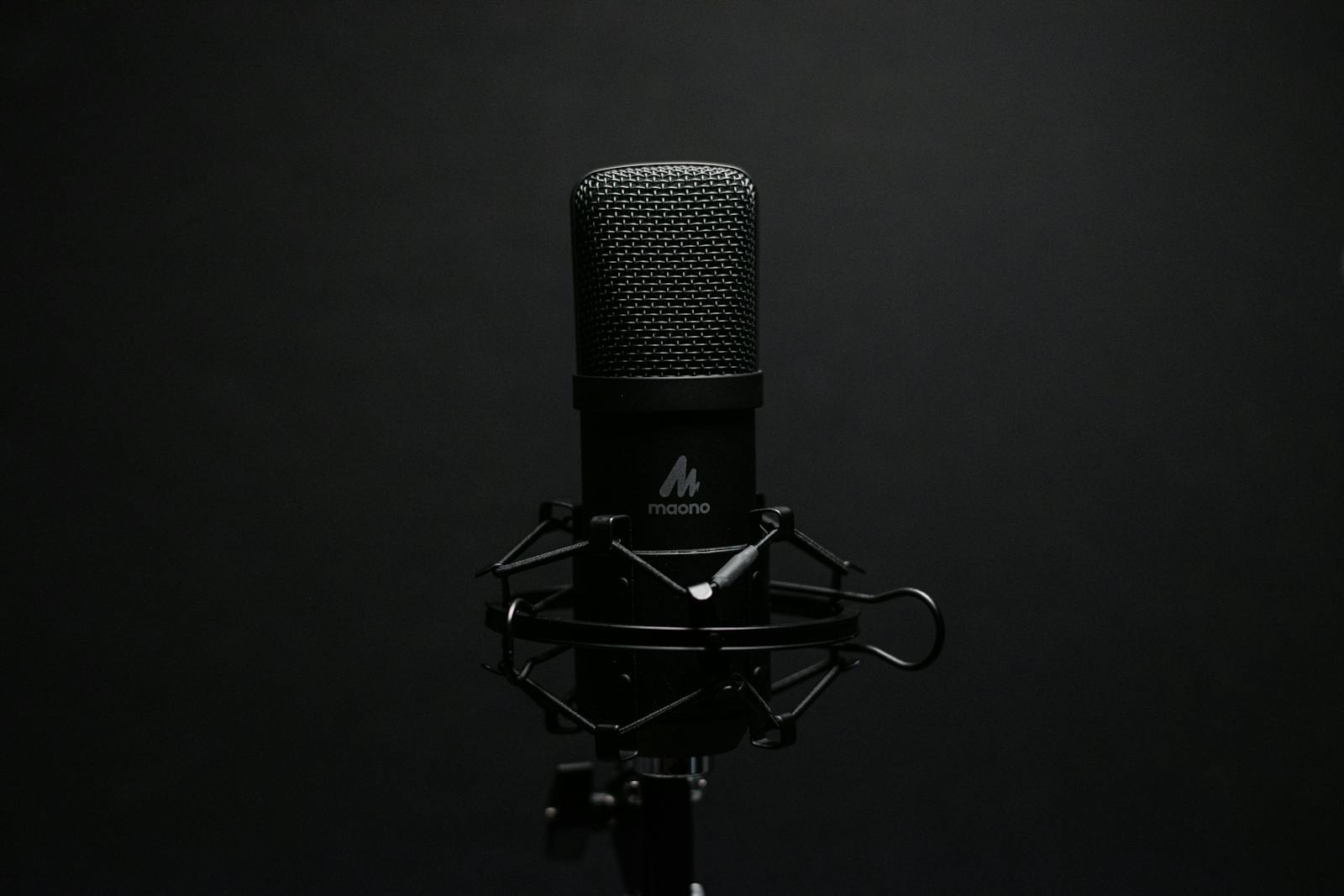
If you’re using the Maono PD100U dynamic microphone and find the sound too quiet, flat, or lacking clarity—especially in VoIP apps, recording software, or livestreams—then this guide is for you. With the help of Equalizer APO, a powerful and free Windows equalizer tool, you can significantly boost and shape your mic’s sound to achieve a louder, clearer, and more professional tone.
Why the Maono PD100U May Sound Too Quiet or Flat
The Maono PD100U is a USB mic with good potential, but several factors can affect its output level:
- Low default gain on USB input
- Flat frequency response from the mic
- Room acoustics or distance from the mic
- Windows or software compression
Equalizer APO lets you fix these issues by applying real-time audio processing at the system level, giving you much greater control than just increasing volume sliders.
What You Need
- Windows PC
- Maono PD100U set as default recording device
- Equalizer APO installed
- Basic understanding of EQ terms (optional)
Step-by-Step Guide to Boost Sound With Equalizer APO
1. Install Equalizer APO
Download and install from SourceForge. During installation, make sure you select your Maono PD100U from the list of capture devices.
After installation, restart your computer if prompted.
2. Open Equalizer APO Configuration Editor
After installation, open the Configuration Editor from the Start menu. This is where you’ll build your EQ chain.
3. Add Preamp Gain Boost
Start by boosting the overall level so the mic signal is louder before EQ shaping:
- Click + → Filter → Preamp
- Set Gain to around +6 dB to +12 dB (adjust to taste)
Avoid going too high, or you may introduce distortion.
4. Add Parametric EQ (PEQ) Filters
Add several PEQ filters to shape your voice and enhance clarity:
- Low Boost (Warmth): 80–120 Hz +3 to +5 dB
- Midcut (Reduce Muddle): 200–400 Hz -2 to -4 dB
- Presence Boost: 800–1200 Hz +4 to +6 dB
- Clarity Boost: 3000–5000 Hz +5 to +8 dB
- Air (Brightness): 8000–12000 Hz +2 to +4 dB
To add each filter:
- Click +
- Select Filter → Parametric EQ
- Set frequency (Fc), gain, and Q (around 1.0–1.5)
Example EQ Settings
Use this as a starting point:
Preamp: +8.0 dB
Filter: ON PK  Fc 100 Hz  Gain +4.0 dB  Q 1.0
Filter: ON PK  Fc 300 Hz  Gain -3.0 dB  Q 1.0
Filter: ON PK  Fc 1000 Hz Gain +5.0 dB Q 1.2
Filter: ON PK  Fc 3500 Hz Gain +6.0 dB Q 1.5
Filter: ON PK  Fc 8000 Hz Gain +3.0 dB Q 1.2
Adjust these numbers based on your voice and environment.
Fine-Tuning Tips
- Test in Real Use: Try calls, recordings, or streaming—don’t just EQ in silence.
- Adjust One Band at a Time: Make small changes and listen.
- Watch for Distortion: If your voice clips, reduce preamp or peak gains.
- Save Multiple Profiles: Create different EQ presets for meetings, streaming, or recording.
Why This Approach Works
By boosting the preamp and shaping frequencies, you:
- Increase overall loudness without distortion
- Enhance clarity and intelligibility
- Reduce muddiness and harsh sibilance
- Fit your voice into the typical speech range
Equalizer APO applies changes universally across Windows, so your mic sounds better in Slack, Zoom, Discord, Teams, OBS, and more.
Common Mistakes to Avoid
- Overboosting Highs: Too much can make your voice sound tinny.
- Too Much Preamp: Can cause clipping and distortion.
- Not Testing With Software: EQ needs to be tested in real use.
- Ignoring Room Acoustics: Hard surfaces can muddy the sound.
Optional: Add a Noise Gate
For cleaner recordings and calls, you can add a noise gate:
- Filter → Noise Gate
- Set Threshold so mic mutes when you’re silent
How to Do it?
Video by PixelPoison
Conclusion: Your Maono PD100U Can Sound Amazing
Using Equalizer APO with a dynamic USB mic like the Maono PD100U can dramatically improve your audio. By boosting gain and shaping critical frequencies, you make your voice louder, clearer, and more professional—perfect for online meetings, streaming, or recording.
With the right EQ settings and small adjustments, you can transform a flat, quiet mic into a reliable vocal tool that performs well anywhere.
If you want, I can help you:
- Generate downloadable EQ presets
- Customize settings for your room and voice
- Guide you through noise reduction and compression
- Set up EQ for streaming and podcasting