Have you ever connected your phone and PC to the same Wi-Fi network, only to find that your phone loads websites quickly while your computer takes forever? You might notice slow downloads, buffering videos, laggy online games, or websites that load much more slowly on your PC.
This problem is more common than you might think. Even when both devices use the same internet connection, they may not receive the same Wi-Fi signal or deliver the same internet performance.
The good news is that you usually do not need to upgrade your internet package to fix it. The problem may be related to your PC’s Wi-Fi adapter, antenna placement, network settings, background applications, or outdated drivers.
In this guide, we will explain why Wi-Fi can be fast on your phone but slow on your PC and show you how to troubleshoot the problem step by step.
Why Is Wi-Fi Fast on Your Phone but Slow on Your PC?
Several factors can explain the difference in internet speed between your phone and computer. Understanding the possible causes will help you find the right solution instead of changing random settings.
1. Your PC Has a Weaker Wi-Fi Adapter
One of the most common reasons is the difference between the Wi-Fi hardware in your phone and PC.
Modern smartphones often have efficient Wi-Fi components designed to work well in small spaces. However, some desktop PCs and older laptops use basic or outdated Wi-Fi adapters that support fewer features or deliver lower speeds.
For example, your phone might support newer Wi-Fi standards, while your PC uses an older adapter that supports fewer channels or slower maximum speeds.
How to fix it:
- Check your PC’s Wi-Fi adapter model.
- Find out which Wi-Fi standards it supports, such as Wi-Fi 5, Wi-Fi 6, or Wi-Fi 6E.
- Update its driver from the PC manufacturer’s or adapter manufacturer’s official website.
- If the adapter is outdated, consider upgrading to a compatible USB or PCIe Wi-Fi adapter.
Remember that the Wi-Fi standard alone does not determine speed. Antenna quality, signal strength, router compatibility, and interference also matter.
2. Your PC Is Connected to the 2.4 GHz Band Instead of 5 GHz
Many modern routers broadcast Wi-Fi on both 2.4 GHz and 5 GHz bands.
The 2.4 GHz band generally reaches farther and can pass through walls more effectively, but it is often more crowded. The 5 GHz band can provide higher speeds at shorter distances, although its signal usually weakens more quickly through walls.
Your phone might connect to the 5 GHz band while your PC connects to 2.4 GHz. This can create a noticeable speed difference.
How to check it in Windows:
- Press
Windows + R. - Type
cmdand press Enter. - Run this command:
netsh wlan show interfaces- Look for the connection details, including the radio type, channel, and receive and transmit rates.
The channel can help identify the band: channels 1–14 are associated with 2.4 GHz, while higher channels are commonly used for 5 GHz or 6 GHz, depending on the Wi-Fi standard and region.
How to fix it:
- Connect your PC to the router’s 5 GHz network if the adapter supports it.
- If your router uses one Wi-Fi name for multiple bands, check whether its settings let you separate the network names.
- Keep your PC reasonably close to the router when testing 5 GHz.
Do not assume 5 GHz is always faster in every room. If the signal is weak, a stable 2.4 GHz connection may perform better.
3. Your Desktop PC’s Wi-Fi Antennas Are Poorly Positioned
This is particularly important if you use a desktop computer.
Many desktop Wi-Fi adapters rely on external antennas connected to the back of the PC. If the computer is under a desk, pushed against a wall, or placed inside a cabinet, the antennas may have difficulty receiving a strong signal.
Your phone, on the other hand, might be closer to the router or held in a location with fewer obstacles.
How to fix it:
- Make sure your Wi-Fi antennas are connected securely.
- Position the antennas upright or according to the manufacturer’s instructions.
- Move the PC away from thick walls, metal cabinets, and other obstacles.
- If your adapter has a separate antenna base, place it on the desk rather than behind the computer.
- Test the connection with the PC closer to the router.
If your PC uses a USB Wi-Fi adapter, try connecting it through a USB extension cable so you can place the adapter in a location with better reception.
4. Your PC Has an Outdated or Faulty Wi-Fi Driver
A Wi-Fi driver allows Windows to communicate with your wireless adapter. If the driver is outdated, corrupted, or incompatible with your current Windows version, the connection may become slow or unstable.
This can happen after a Windows update or when a PC has been using the same driver for years.
How to update your Wi-Fi driver:
- Right-click the Start button.
- Open Device Manager.
- Expand Network adapters.
- Find your wireless network adapter.
- Right-click it and select Update driver.
- Follow the instructions.
Windows may not always find the newest driver. If the problem continues, visit your PC or Wi-Fi adapter manufacturer’s official support website and download the appropriate driver.
Avoid downloading drivers from unknown websites.
5. Background Apps Are Using Your Internet
Your PC may be downloading updates or synchronizing files without you noticing.
Applications such as Windows Update, cloud storage tools, game launchers, and download managers can use a significant amount of bandwidth. This may make browsing, video streaming, and online gaming feel slow.
Your phone might appear faster simply because it is not running the same downloads.
How to check:
- Press
Ctrl + Shift + Escto open Task Manager. - Open the Processes tab.
- Check the Network column.
- Identify applications using unusually high network bandwidth.
You can also open Resource Monitor by searching for it in the Windows Start menu and checking network activity.
Pause unnecessary downloads or synchronization tasks and test your internet speed again.
Do not disable security updates permanently. If Windows is downloading an update, allow it to finish or pause it temporarily through the normal Windows settings.
6. Your PC Is Connected to a VPN or Proxy
A VPN routes your internet traffic through another server. Depending on the VPN server, encryption overhead, routing, and your connection quality, it can reduce internet speed.
Your phone may not have the same VPN enabled, which could explain why it performs better.
A proxy, filtering application, or security tool can also affect some connections.
How to fix it:
- Check whether a VPN is running on your PC.
- Disconnect it temporarily if you do not need it.
- Run a speed test again.
- Check Windows proxy settings under Settings → Network & internet → Proxy.
Only disconnect a VPN or proxy if doing so is safe for your situation. If your workplace or school requires one, follow its IT guidance.
7. Your PC Is Experiencing Wi-Fi Interference
Wi-Fi signals can be affected by nearby wireless networks and electronic devices.
The 2.4 GHz band is especially susceptible to congestion because many routers and devices use it. In an apartment building, many neighbouring Wi-Fi networks may compete for the same channels.
A phone may handle the same environment differently because of its antenna design, supported Wi-Fi features, or position.
How to fix it:
- Try connecting to 5 GHz if your adapter supports it.
- Move your PC or router to a more open location.
- Keep the router away from major sources of interference where practical.
- If you control the router, try a less congested Wi-Fi channel.
- Restart the router if its connection appears unstable.
If possible, test the PC close to the router. A large improvement at close range suggests a signal or interference problem.
8. Your PC Is Connected Through a Slow USB Wi-Fi Adapter
Some inexpensive USB Wi-Fi adapters have limited wireless capabilities or small antennas. Others may perform poorly when connected through a hub, placed behind a metal computer case, or used in a busy USB environment.
An older adapter may also lack support for the faster Wi-Fi features available on your router and phone.
How to fix it:
- Check the adapter’s supported Wi-Fi standard and advertised speed.
- Install the latest compatible driver.
- Try a different USB port.
- Use a USB extension cable to improve placement.
- If performance remains poor, test with another known-good Wi-Fi adapter.
Advertised wireless speeds are theoretical link rates, not guaranteed internet speeds. Real-world performance is usually lower.
9. Your PC Is Connected to a Different Network or Router Band
Some routers broadcast multiple network names, such as a main network, a guest network, or separate 2.4 GHz and 5 GHz networks.
Your phone and PC may look as though they are connected to the same Wi-Fi, but they could actually be using different networks or access points.
Guest networks may also have speed limits or restrictions configured by the router administrator.
How to fix it:
- Check the Wi-Fi network name on both devices.
- Confirm whether either device is connected to a guest network.
- Check whether your router has bandwidth limits or parental controls.
- If you use a mesh Wi-Fi system, check which access point each device is using.
- Connect both devices to the intended network and compare again.
10. Your PC Has a Network Configuration Problem
Sometimes Windows network settings become corrupted or misconfigured. This can cause slow connections, intermittent disconnections, or problems reaching certain websites.
Possible causes include incorrect DNS settings, a misconfigured network stack, or a manually configured proxy.
Try these basic commands:
Open Command Prompt as an administrator and run:
ipconfig /flushdnsThis clears the local DNS resolver cache. It can help with some website-resolution problems, but it will not directly increase Wi-Fi signal strength or fix every slow connection.
If the issue continues, you can try resetting the Windows network stack:
netsh winsock reset
netsh int ip reset
Restart your PC after running the commands.
Be aware that network resets may affect custom network configurations. Save any settings you may need before proceeding.
How to Find the Exact Cause of Slow Wi-Fi on Your PC
Instead of trying every possible fix, follow these steps to narrow down the problem.
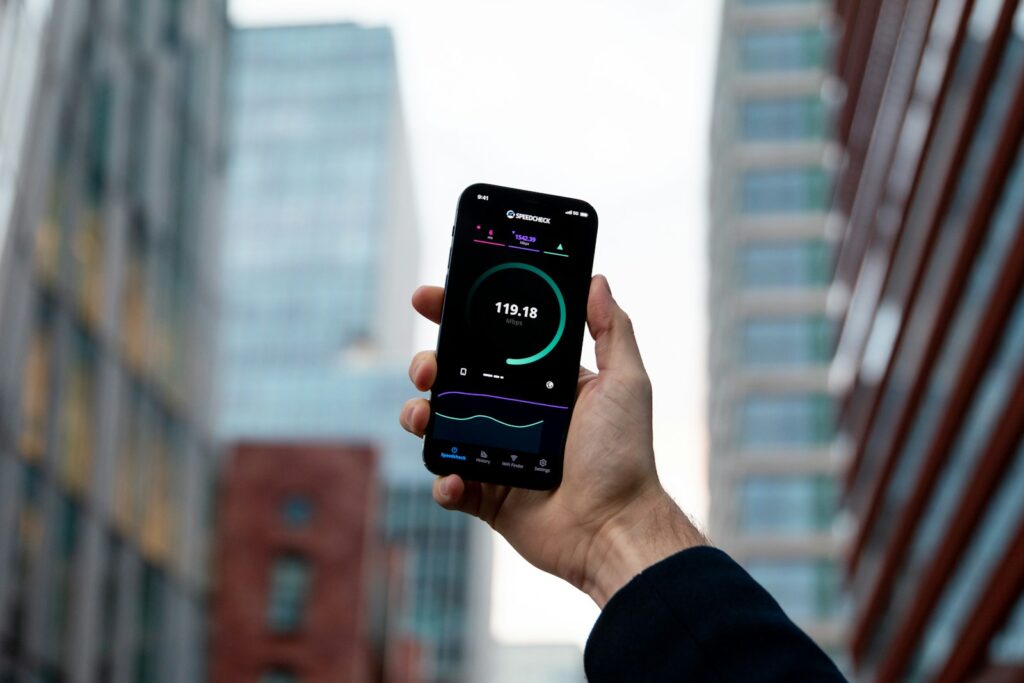
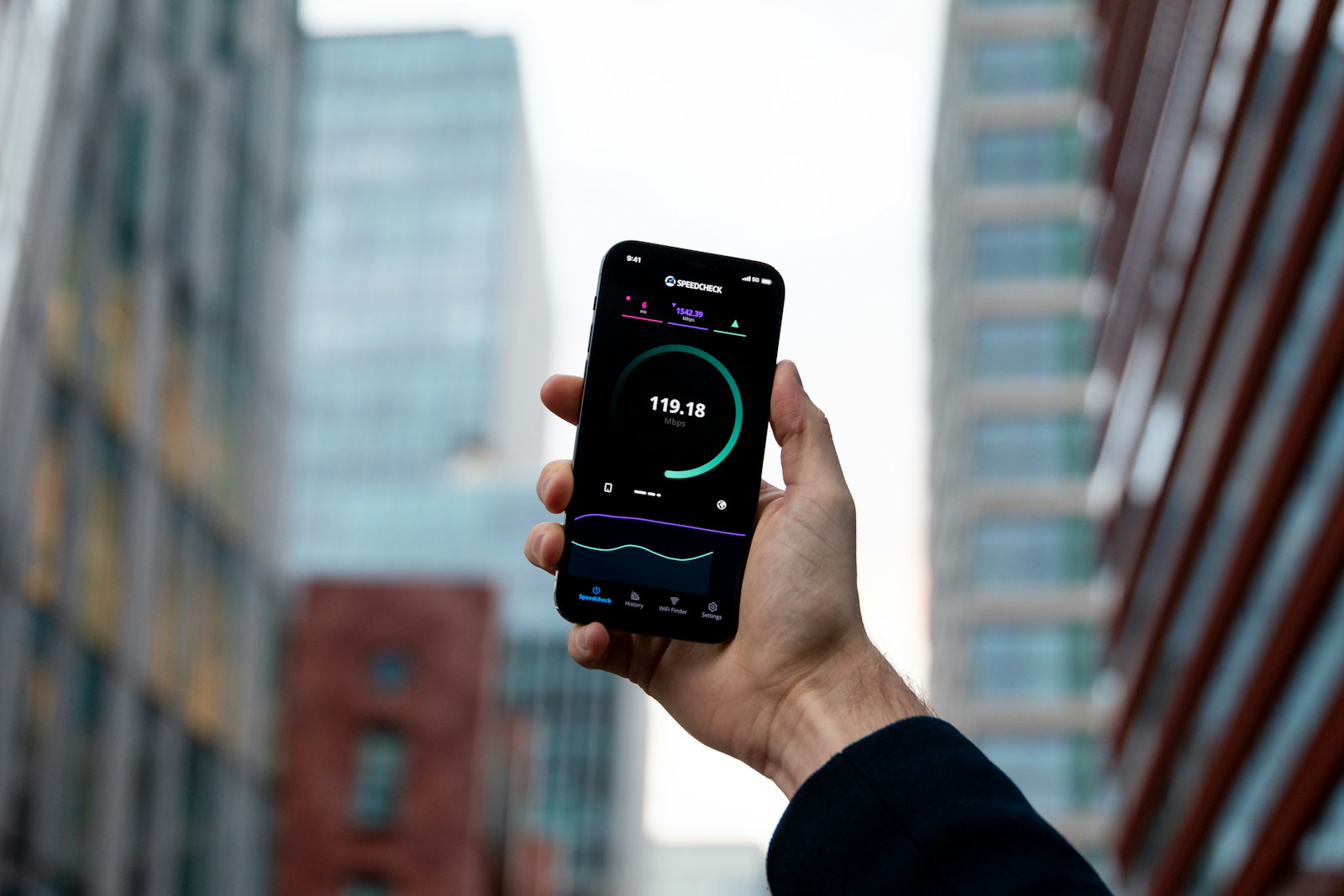
Step 1: Test Your Internet Speed on Both Devices
Connect your phone and PC to the same Wi-Fi network. Ideally, place them near each other and test them one at a time using the same speed-test service.
You can use Speedtest by Ookla or Fast.com.
Compare the following:
- Download speed
- Upload speed
- Ping or latency
Run each test two or three times. Internet speeds can fluctuate because of network congestion and the test server being used.
Step 2: Test Your PC Near the Router
Move your laptop or desktop Wi-Fi antenna closer to the router, if possible.
If your PC’s speed improves significantly, the problem may involve signal strength, antenna placement, walls, or interference.
If the speed remains low, investigate the adapter, driver, network configuration, and background applications.
Step 3: Compare Wi-Fi With an Ethernet Cable
If your PC has an Ethernet port, connect it directly to the router using a suitable cable.
Run another speed test.
If Ethernet is fast but Wi-Fi is slow, the problem is likely related to the wireless connection, adapter, antenna, or Wi-Fi settings.
If both connections are slow while your phone remains fast, investigate PC software, VPN settings, background downloads, router rules, and test consistency.
Step 4: Check the Wi-Fi Link Speed
Open Command Prompt and run:
netsh wlan show interfacesCheck the receive rate, transmit rate, channel, and radio type.
The receive and transmit rates indicate the wireless link’s negotiated rates between your PC and router. They are not the same as your actual internet speed, but they can provide useful clues.
A very low link rate may indicate weak signal, an older adapter, or a poor wireless connection.
Step 5: Update the Wi-Fi Driver
If the adapter driver is outdated, install the appropriate version from the manufacturer’s official website.
Restart your PC and repeat the speed test.
Step 6: Check for Background Downloads
Open Task Manager and check which applications are using the network.
Pause unnecessary downloads and cloud synchronization, then test again.
Step 7: Reset Network Settings Only If Needed
If the previous steps do not help, consider resetting the network stack or using Windows’ Network reset option.
Use this as a later troubleshooting step because it can remove saved network settings or require you to reconnect to Wi-Fi.
Why Is My PC Slow Even When It Shows Full Wi-Fi Signal?
Full Wi-Fi bars do not guarantee a fast internet connection.
The signal indicator mainly provides an estimate of wireless signal strength. It does not directly show internet congestion, router performance, adapter capability, interference, or the speed of your broadband connection.
Your PC may display full bars while connected through a slow adapter or a congested Wi-Fi channel.
To investigate, check your wireless link rate, test near the router, compare with Ethernet, and check whether background applications are using bandwidth.
Should You Buy a New Wi-Fi Adapter?
A new Wi-Fi adapter may help if your current adapter is old, has a weak antenna, or does not support the features of your router.
Before buying one, check:
- Which Wi-Fi standard your router supports.
- Whether your PC supports the adapter’s interface.
- Whether the adapter has external antennas or a separate antenna base.
- Whether drivers are available for your Windows version.
- Whether your internet package and router can take advantage of the adapter’s capabilities.
For a desktop PC, a good PCIe Wi-Fi adapter with external antennas can be a useful upgrade. A USB adapter can be easier to install, especially if you use an extension cable to position it properly.
However, do not spend money before testing your current adapter and checking the connection settings.
Frequently Asked Questions (FAQs)
Why is Wi-Fi fast on my phone but slow on my Windows 11 PC?
Possible causes include an outdated Wi-Fi driver, a weak adapter, poor antenna placement, a crowded Wi-Fi band, background downloads, or a VPN. Compare both devices on the same network and test your PC near the router first.
Can an old Wi-Fi adapter make my internet slow?
Yes. An older adapter may support lower speeds or fewer Wi-Fi features than your router and phone. Replacing it can help if the adapter is the main limitation.
Does 5 GHz Wi-Fi always provide faster speeds than 2.4 GHz?
No. The 5 GHz band can offer higher speeds at shorter distances, but its signal generally weakens more quickly through walls. The best band depends on your location, signal quality, router, and adapter.
Will updating my Wi-Fi driver increase internet speed?
It may improve performance if the current driver has bugs, compatibility problems, or other issues. However, a driver update cannot overcome every hardware or signal limitation.
Why is my desktop PC slower than my laptop on the same Wi-Fi?
The desktop may have a weaker adapter, poorly positioned antennas, or more obstacles between it and the router. Try repositioning its antennas or using a separate antenna base.
Can a VPN make Wi-Fi slower on my PC?
Yes. A VPN can reduce speed because of server distance, routing, encryption overhead, or server congestion. Temporarily disconnect it when safe and compare the results.
Will changing DNS make my Wi-Fi faster?
Changing DNS may improve how quickly your device finds a website’s IP address in some situations. It generally does not increase the actual bandwidth of your Wi-Fi or internet connection.
What should I do if Ethernet is also slow on my PC?
Check background downloads, VPN and proxy settings, network drivers, and Windows configuration. Also confirm that both devices are being tested against the same service and server. If necessary, compare your results with another wired device.
Final Thoughts
If Wi-Fi is fast on your phone but slow on your PC, the problem does not automatically mean your internet provider is delivering a poor connection.
Your PC may be using an older Wi-Fi adapter, connecting to the wrong frequency band, receiving a weak signal, running unnecessary background downloads, or using an outdated driver.
Start by testing both devices on the same network. Then move your PC closer to the router, check its Wi-Fi link rate, update the driver, and compare Wi-Fi with Ethernet if possible.
These simple checks can help you identify the cause before spending money on new hardware or upgrading your internet package.