Are you getting slow download speeds on your Windows 11 PC even though your internet connection works well on your phone? Large files may take hours to download, browser downloads may stop and start, or game updates may download much more slowly than expected.
Slow download speeds can have several causes, including Wi-Fi problems, background applications, network adapter settings, outdated drivers, and limitations on the download server.
The good news is that you can check most of these problems yourself. In this guide, you will learn how to fix slow download speed on Windows 11, step by step, starting with the easiest solutions.
Why Is Download Speed Slow on Windows 11?
Before changing any settings, try to understand what is causing the problem. Your PC may have a network issue even when other devices on the same connection work normally.
Common causes include:
- Weak Wi-Fi signals or wireless interference.
- Background applications using your internet connection.
- Windows Update downloading files in the background.
- An outdated or faulty network adapter driver.
- VPN or proxy connections affecting network performance.
- Incorrect network configuration.
- A slow download server or limitations imposed by the website.
- Router problems or internet service provider congestion.
If your internet is fast on your phone but slow on your PC, focus on the PC’s network connection, adapter, and background activity first.
How to Fix Slow Download Speed on Windows 11
Check Your Actual Internet Speed
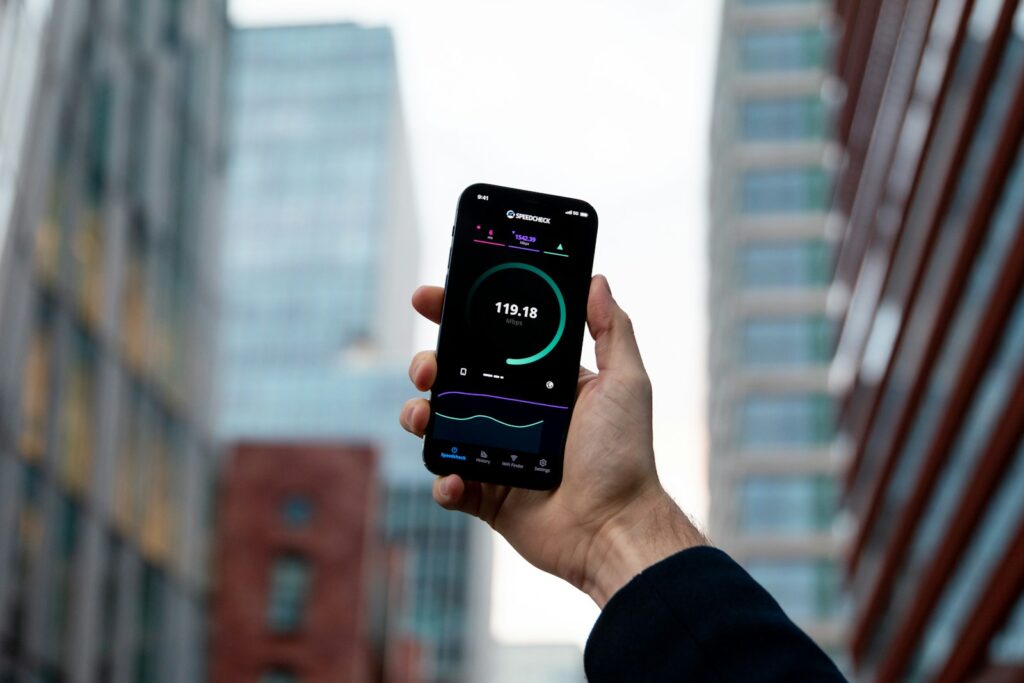
First, check whether your internet connection is slow or whether the problem affects only file downloads.
Open one of these speed-testing websites:
Run a few tests and compare the results with your internet plan. If possible, use an Ethernet cable to test your PC directly through the router.
Keep in mind that internet speed is usually measured in Mbps, while many download applications display MB/s.
For example:
- 100 Mbps is approximately 12.5 MB/s.
- 50 Mbps is approximately 6.25 MB/s.
- 20 Mbps is approximately 2.5 MB/s.
These are theoretical conversions. Actual download speeds may be lower because of protocol overhead, server limitations, and other network conditions.
If your speed test is fast but a particular file downloads slowly, the problem may be with the download server rather than Windows 11.
Restart Your PC and Router
A simple restart can resolve temporary network problems.
Save your work and restart your Windows 11 PC. If the problem continues, restart your router as well.
Unplug the router’s power cable, wait around 30 seconds, and reconnect it. Allow the router to finish starting before testing your download speed again.
If you use a separate modem and router, follow your internet provider’s instructions for restarting both devices.
Use an Ethernet Cable Instead of Wi-Fi
Wi-Fi can be affected by distance, walls, interference, and other wireless devices. An Ethernet connection is often more stable for large downloads.
Connect your PC directly to your router using an Ethernet cable and run another speed test.
If download speeds improve significantly, your Wi-Fi connection may be the problem.
If you must use Wi-Fi, try moving your PC closer to the router. You can also try the 5 GHz band if your router supports it and the signal is strong enough.
The 2.4 GHz band generally offers better range, while 5 GHz can provide higher speeds at shorter distances. The best option depends on your home and router.
Close Apps That Use Internet Bandwidth
Some applications download or upload files in the background without making it obvious.
Examples include:
- Cloud storage applications such as OneDrive and Google Drive.
- Game launchers such as Steam and Epic Games Launcher.
- Windows Update.
- Torrent clients.
- Browser downloads.
- Backup and synchronization software.
To find out which applications are using your network, open Task Manager by pressing Ctrl + Shift + Esc.
Select Processes and look at the Network column. If necessary, click the column heading to sort applications by network usage.
Pause unnecessary downloads or synchronization tasks and test your download speed again.
Do not end unfamiliar Windows processes simply because they are using network resources. Some are required for Windows or other applications to work properly.
Check Windows Update Activity
Windows Update may download updates in the background, temporarily reducing the bandwidth available to other applications.
Open:
Settings → Windows Update
Check whether updates are downloading or installing. If so, allow the process to finish when convenient, or pause updates temporarily if your version of Windows offers that option and you need the bandwidth immediately.
You can also check Settings → Windows Update → Advanced options → Delivery Optimization to review how Windows manages update downloads.
Delivery Optimization helps Windows download updates and Microsoft Store apps. Its bandwidth settings can affect automatic background downloads, but they do not impose a universal speed limit on every download application.
For more information, read Microsoft’s Delivery Optimization guide.
Update Your Network Adapter Driver
An outdated, incompatible, or faulty network adapter driver can cause slow speeds, connection drops, or other network problems.
To check for an update:
- Right-click the Start button and open Device Manager.
- Expand Network adapters.
- Find your Wi-Fi or Ethernet adapter.
- Right-click it and select Update driver.
- Choose Search automatically for drivers.
Windows may not always find the newest driver. If the problem continues, visit your PC or motherboard manufacturer’s official website and check for a suitable network driver.
If the slowdown started immediately after a driver update, open the adapter’s Properties in Device Manager and check whether the Roll Back Driver option is available.
Avoid downloading drivers from unknown websites.
Turn Off Your VPN or Proxy Temporarily
A VPN can affect download speed because your traffic travels through a VPN server before reaching the destination. The server’s location, load, and routing can all make a difference.
If you are using a VPN, disconnect it temporarily and test the same download again.
If you use a manual proxy, check it under:
Settings → Network & internet → Proxy
Do not disable a proxy or VPN that your workplace, school, or organization requires. If your download becomes faster without a personal VPN, try another nearby VPN server or protocol instead of assuming your internet provider is responsible.
Disable Metered Connection if Appropriate
Windows may treat a network as a metered connection to help control data usage. This setting can affect some background activities and downloads, but it does not automatically cap all internet speeds.
To check it:
- Open Settings → Network & internet.
- Select Wi-Fi or Ethernet, depending on your connection.
- Open the connected network’s properties.
- Check the Metered connection setting.
If you have an unlimited internet plan and do not need to limit data usage, you can turn the setting off.
If your plan has a data allowance, keep it enabled when appropriate. Disabling metered connection is not a guaranteed fix for slow downloads.
Run the Windows Network Troubleshooter
Windows 11 includes tools that can identify common network problems.
Open:
Settings → System → Troubleshoot → Other troubleshooters
Look for the Network and Internet troubleshooter, or open the Get Help app and search for network troubleshooting.
Follow the instructions and apply any suggested fixes.
The available troubleshooting options may vary by Windows 11 version. Microsoft’s Wi-Fi troubleshooting guide provides additional steps.
Reset Network Settings Using CMD
If your download speed is still unusually slow and you suspect a network configuration problem, you can reset some Windows networking components.
Open Command Prompt as administrator and run these commands one at a time:
netsh winsock reset
netsh int ip reset
ipconfig /release
ipconfig /renew
ipconfig /flushdns
Restart your PC after running the commands, then test the connection again.
These commands reset the Winsock catalog, reset IP configuration, renew your IP address, and clear the DNS resolver cache. They may help with certain network problems, but they will not fix a slow server or a bandwidth limit imposed by your ISP.
If you use a static IP address, special network configuration, or workplace VPN, make sure you have the necessary settings before resetting anything.
Change DNS Only If You Have a DNS Problem
A DNS server translates domain names into IP addresses. Changing DNS can sometimes improve name resolution or help with particular connection issues, but it usually does not increase the maximum download speed of an already established connection.
If websites take a long time to begin loading but downloads are fast once started, DNS may be worth investigating.
You can learn more about Cloudflare’s public DNS service at 1.1.1.1.
Do not expect changing DNS alone to solve every slow-download problem.
Use Network Reset as a Last Resort
If the previous fixes do not work, Windows 11 offers a Network reset option that removes and reinstalls network adapters and returns networking settings to their defaults.
Open:
Settings → Network & internet → Advanced network settings → Network reset
Select Reset now if the option is available, then follow the prompts.
Use this only after trying the simpler solutions. You may need to reconnect to Wi-Fi and reinstall or reconfigure VPN software, virtual network adapters, and other networking tools.
For more details, see Microsoft’s network troubleshooting guidance.
What If Download Speed Is Still Slow?
If none of the fixes work, narrow down the problem instead of changing more settings at random.
Test the Same Download on Another Device
Download the same file on another computer or device connected to the same network.
If the file downloads quickly on another device but slowly on your PC, focus on Windows, your network adapter, and background applications.
If it is slow on every device, the issue may involve your router, internet connection, ISP, or the server hosting the file.
Try a Different Download Server
A website may have limited server capacity or a slow route to your location. Try downloading a legitimate file from another trusted website.
If only one website is slow, there may be nothing wrong with your PC.
For gaming platforms and software download services, check whether the application lets you select a different download region or server.
Check Whether Your ISP Is the Problem
If your speed tests are consistently below your subscribed speed across multiple devices, contact your internet service provider.
Run tests at different times and, if possible, compare results using Ethernet. Ask the provider to check for line problems, congestion, package restrictions, or other account-related issues.
For a more detailed investigation, read our guide on How to Check if Your ISP Is Throttling Your Internet.
Frequently Asked Questions
Why Is My Download Speed Slow on Windows 11 but Fast on My Phone?
Your PC may have a weak Wi-Fi signal, an outdated network driver, background downloads, or a network configuration problem. Test the PC using Ethernet and compare its speed with your phone under similar conditions.
How Can I Increase Download Speed on Windows 11?
Start by checking your actual internet speed, pausing background downloads, using Ethernet when possible, updating your network adapter driver, and testing the download from another server. Avoid changing advanced network settings unless you have a specific reason.
Does Windows 11 Limit Download Speed?
Windows 11 does not apply one universal download-speed cap to every application. However, features such as Delivery Optimization can manage bandwidth for automatic Windows and Microsoft content downloads. Individual applications and network configurations can also affect performance.
Does Changing DNS Make Downloads Faster?
Usually, changing DNS does not increase the transfer speed of a download already in progress. It may help with some name-resolution problems, but the download server, route, and internet connection determine much of the actual transfer speed.
Should I Use a Download Manager?
A download manager may improve convenience, support interrupted downloads, or split a file into multiple connections when the server allows it. However, it cannot guarantee faster speeds, and some servers limit multiple connections.
Is a Network Reset Safe?
Network reset is a built-in Windows troubleshooting option, but it removes and reinstalls network adapters and resets networking settings. You may need to reconnect to Wi-Fi or reconfigure VPN and virtual network software afterward.
Final Thoughts
Slow download speed on Windows 11 can be frustrating, especially when your phone or other devices download files much faster on the same internet connection.
Start with the basics: test your speed, restart your router, check background applications, and try Ethernet. If the problem continues, update your network driver, review Windows Update activity, and use the built-in troubleshooting tools.
Only move to command-line resets or a full Network reset when simpler fixes fail.
The most important step is to identify whether the problem affects your Windows 11 PC, your entire internet connection, or just one download service. Once you know where the problem is, it becomes much easier to choose the right fix.